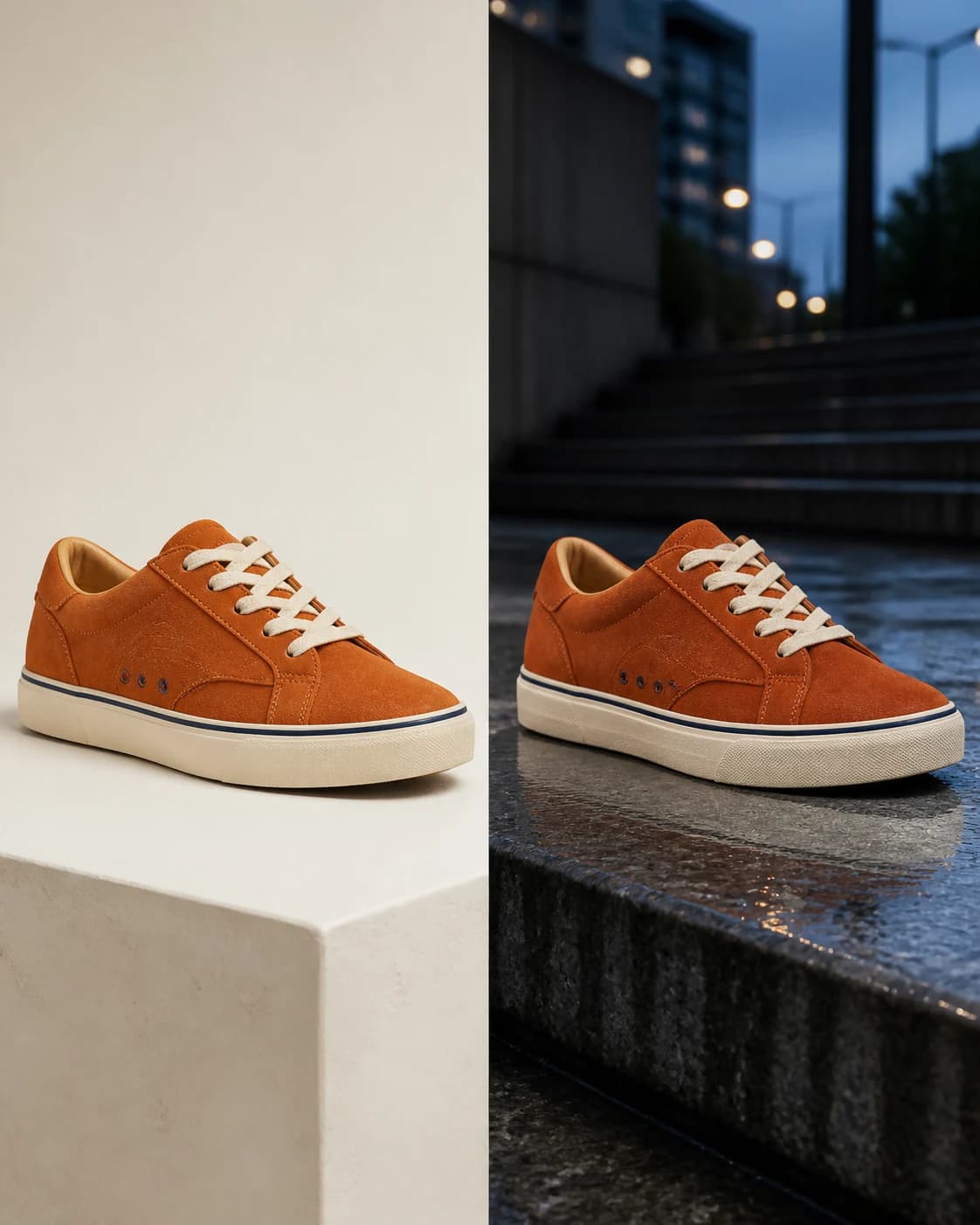
Reference-led product generation
AI Product Image Generator for Consistent Product Photos
Start with a real product reference, create channel-ready variations, and keep the object recognizable from the first catalog image to the final campaign crop.
01
More outputs do not help when every output shows a new product
An AI product image generator can produce dozens of attractive scenes in minutes, but volume is not the same as usable variation. If the toe shape changes, the lace count moves, the packaging grows, or the material becomes something else, each image introduces a new fictional SKU. The real bottleneck becomes review and repair.
02
Generate from product evidence, not a product description
Save the product as a named object reference and include that reference in each prompt. Then tell CharaSync which details define the item and which parts of the photograph may change. The AI product image generator receives a visual anchor for identity and a separate brief for scene design.
Brief comparison
What makes a reference-led generation usable
Input: visual evidence
A text-only brief asks the model to invent an item from category knowledge. A reference-led brief begins with the actual silhouette, construction, color relationships, and material behavior of your product.
Constraint: locked product details
State the features that define the SKU: dimensions, panels, closures, components, color blocking, surface finish, and graphic placement. The list should be short enough to review and specific enough to reject an altered object.
Freedom: scene and composition
Background, props, lighting, camera height, focal length, crop, and mood belong to the creative layer. Varying these elements produces genuinely new campaign assets without deliberately changing the merchandise.
Decision: a visible rejection boundary
A result passes only when it still depicts the approved item. Image quality, taste, and product accuracy are separate decisions. A gorgeous composition with the wrong sole, cap, or label is still a rejection.
A focused workflow
From reference to repeatable output
- 01
Choose the source that explains the product
Use a clean source with enough resolution to show edges, joins, textures, and color boundaries. A three-quarter view is a useful default. Add a front, side, or close detail only when that view resolves information hidden in the main image.
- 02
Bind the object to a clear name
Save the source as an object reference and use a short, unambiguous name. Mention that name in the prompt so the AI product image generator knows which uploaded evidence belongs to the hero object rather than the background or a prop.
- 03
Describe one deliverable at a time
Ask for a specific asset: square marketplace hero, vertical social ad, wide website banner, or lifestyle close-up. Include the surface, light direction, camera angle, negative space, and intended crop. Do not mix several incompatible compositions in one request.
- 04
Compare, approve, and repeat
Review the generated image beside the original. Approve the product identity before judging the styling. Reuse the same reference and fixed description for the next format, changing only the scene layer that the new channel requires.
Output strategy
Turn one product reference into a controlled image system
Catalog image
Use a neutral background, straightforward light, natural perspective, and generous product coverage. This is the safest test for silhouette and component accuracy. It also creates a clean approved output that can support more ambitious generations later.
Lifestyle image
Place the product in a believable environment with props that establish use, scale, and audience. Keep the object unobstructed enough to inspect. Shadows and reflections should match the scene, while the physical construction remains anchored to the source.
Campaign image
Add bolder art direction only after the item is stable. Specify negative space for copy, safe crop zones, palette, lens character, and channel ratio. The AI product image generator should adapt the photograph around the product instead of adapting the product to the concept.
Accuracy finish
Inspect high-risk zones at full size: fine text, logos, stitching, transparent edges, repeating patterns, reflective surfaces, and small mechanisms. When exact typography or regulated packaging is required, replace generated graphics with the approved source artwork during finishing.
Channel adaptation
Create each aspect ratio as its own composition instead of forcing one master image into every crop. A marketplace square may need a centered object and clean margins; a vertical story needs room above and below; a wide banner needs intentional copy space. Keep the named reference and locked-detail brief unchanged while the AI product image generator moves the camera and environment around the same item. Review the product again after every reframing because extreme crops and camera angles can hide or distort defining parts.
Version control for visual decisions
Store the source, approved outputs, prompt, ratio, and rejection notes together. Use names that identify the product and deliverable rather than vague labels such as final or new. A simple record prevents an outdated package or rejected construction detail from returning in the next campaign. It also lets another teammate use the AI product image generator without reverse-engineering which image was the trusted product reference. Record the intended channel and approval date as well, so teams can distinguish a current ecommerce master from an older seasonal experiment at a glance.
What stays consistent
Protect the details audiences remember
A consistent ecommerce set
Create marketplace, product-detail, paid-social, and campaign images that feel varied as photographs while continuing to show one recognizable item.
Less prompt rebuilding
Keep the object evidence and fixed-detail brief reusable. New work begins with a different scene instruction, not another attempt to describe the product from memory.
Clearer human review
Separate product fidelity from aesthetics. Reviewers can approve identity first, then select the strongest composition, which shortens feedback and reduces accidental acceptance of a polished but inaccurate image.
Before you create
Frequently asked questions
What does an AI product image generator need from me?
Provide at least one clean product image and a focused description of the desired scene. Name the important fixed details, such as silhouette, components, color, and material. Add supporting views only when the first source cannot show a defining feature.
Can it create square, portrait, and landscape images?
Yes. Keep the same object reference, then request each composition separately with its intended ratio and use. Tell the model where the product should sit and where negative space is needed so the framing is designed for the channel rather than cropped as an afterthought.
Can I generate several products in one image?
CharaSync supports up to four references in one generation. Use distinct names and make the placement of each object explicit. Start with a single hero product when accuracy matters most; multi-product layouts add occlusion, scale, and contact challenges.
Is this a replacement for a real product photo?
It is best used to expand an approved visual source into new creative contexts. Keep real or verified renders for factual product documentation, measurement-critical views, fine packaging text, and any claim that must match the delivered item exactly.
How do I keep generated product sets organized?
Keep the original reference, approved images, prompt, aspect ratio, and review notes under one product name. Separate approved, revision, and rejected outputs so a visually polished but inaccurate version does not become a future reference for later reuse.
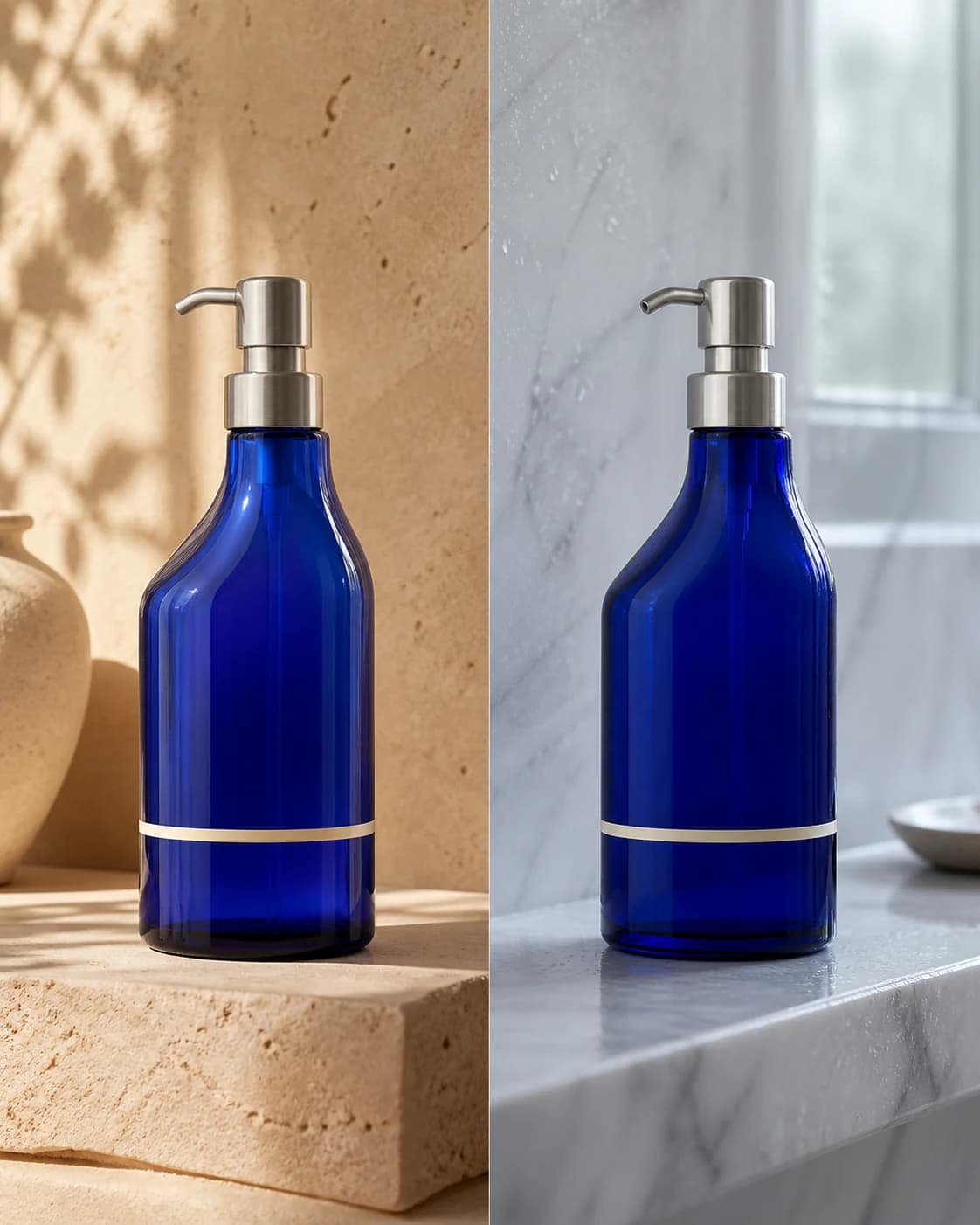
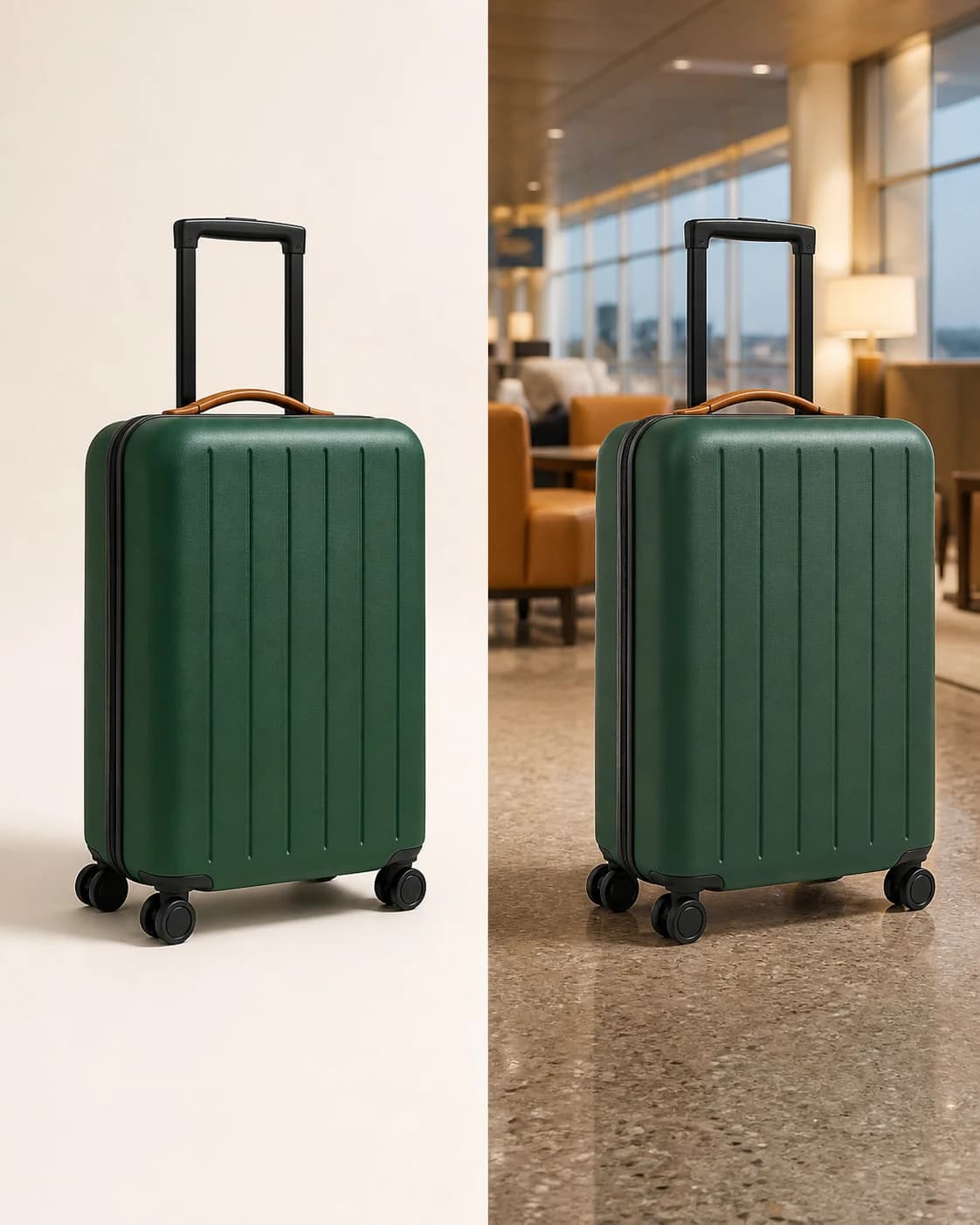
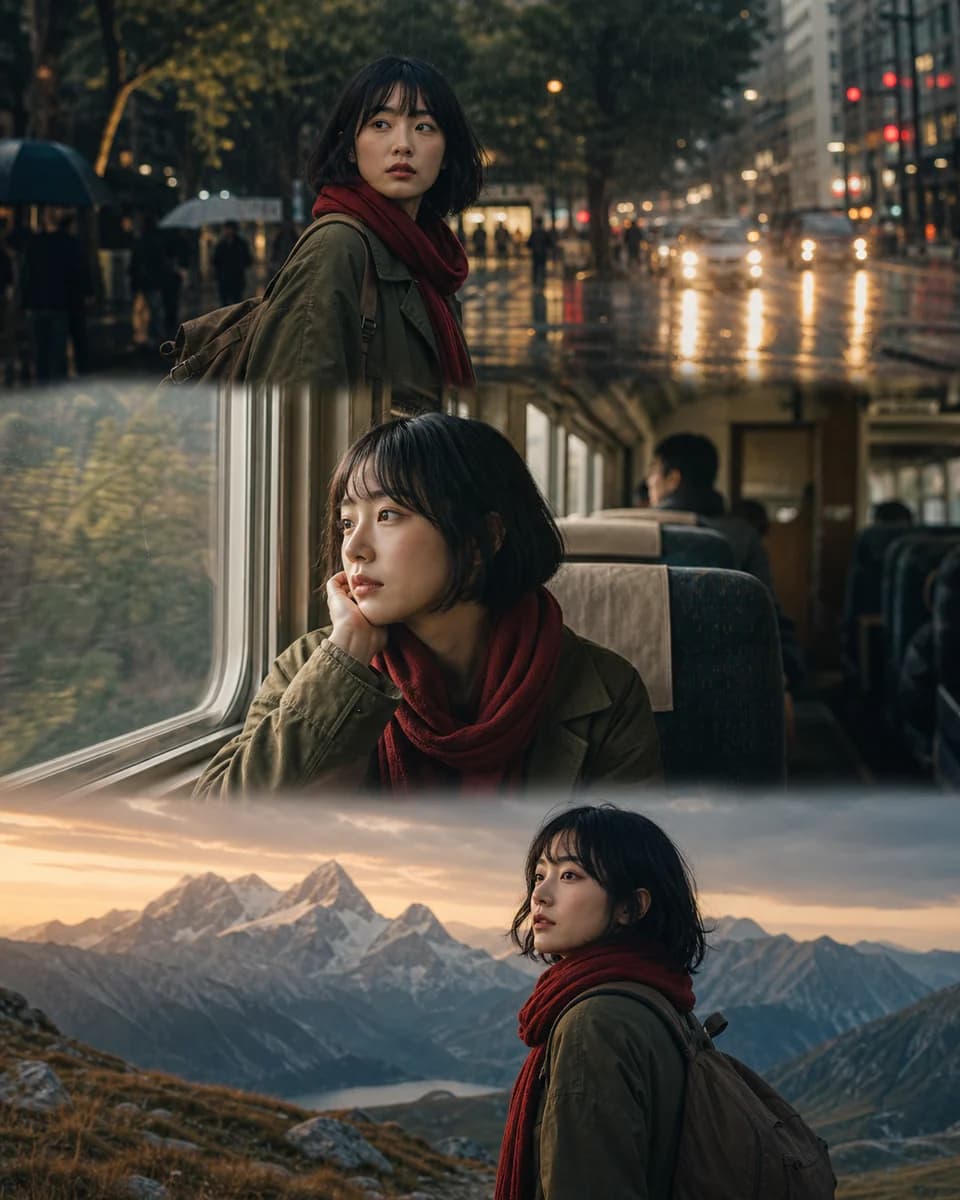
Build the next image around the product you already approved
Add a product reference, lock its recognizable details, and use the AI product image generator to create the next channel-ready scene.